
Setup AWS / Azure
This guide walks you through deploying brighter Redact Enterprise Orchestration on an AWS / Azure Image.
This guide provides a detailed overview of how to select the correct images and configurations for AWS and Azure servers to ensure compatibility with Docker containers running our solution. The focus is on selecting images with the necessary software and packages pre-installed and ensuring GPU compatibility.
Prerequisites for Running Docker Containers
To successfully run our solution on AWS and Azure servers, the following software and packages must be installed:
NVIDIA Software Requirements:
- nvidia-docker2
- nvidia-driver-550
- libnvidia-compute-550-server
- nvidia-utils-550-server
Recommended Images for AWS and Azure
-
AWS
- Deep Learning Base OSS NVIDIA GPU AMI (Ubuntu 22.04)
- Suitable for G4dn (NVIDIA T4), G5 (NVIDIA A10G), and other Intel/AMD CPU images
- Mind that the GPU instances with Arm CPUs, like the G5g, are not supported for brighter Redact.
- Deep Learning Base OSS NVIDIA GPU AMI (Ubuntu 22.04)
-
Azure:
- Suitable for every GPU except A10
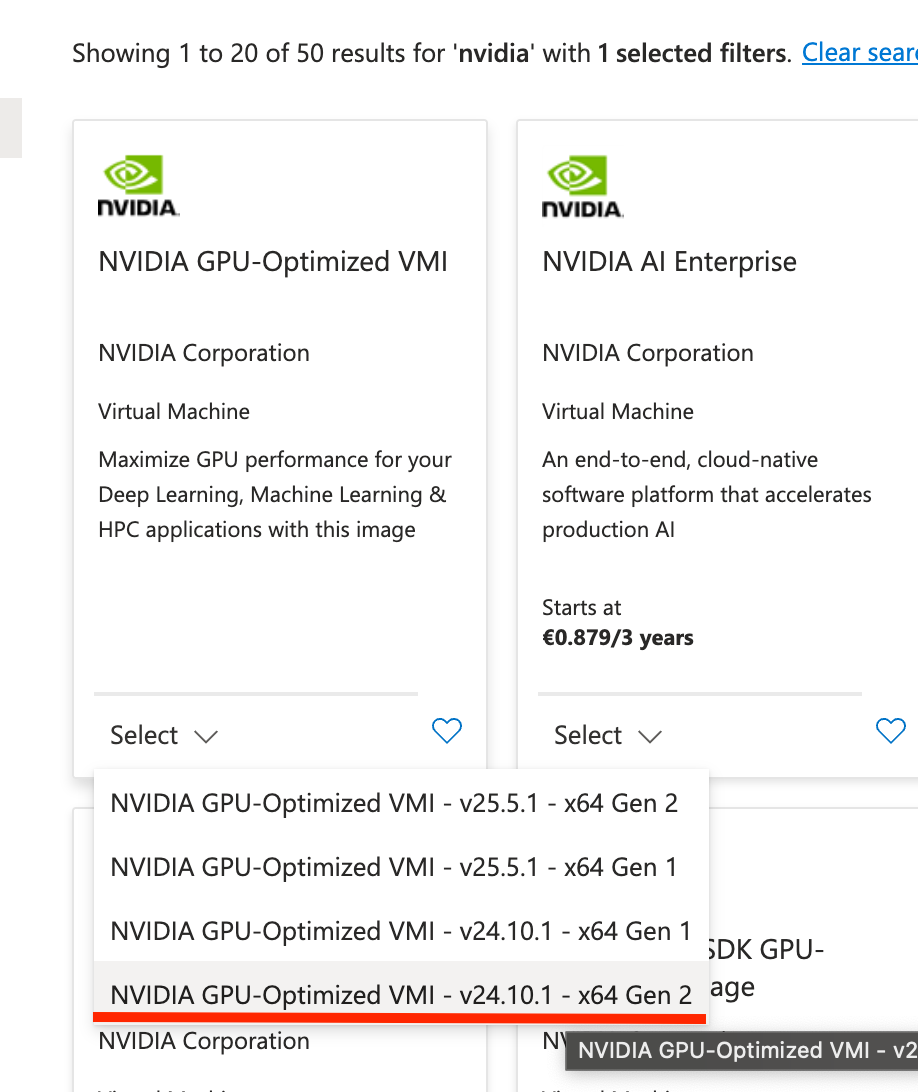
- NVIDIA GPU-Optimized VMI - v22.08.0 -x64 Gen2
- Suitable for A10
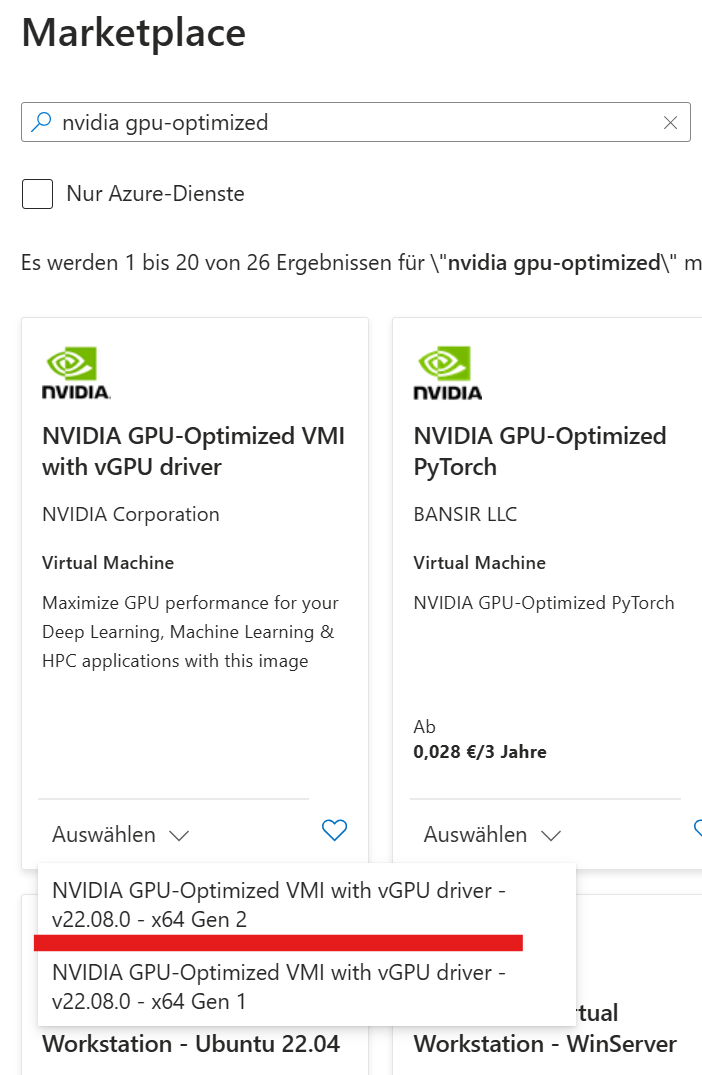
Key Considerations
GPU Compatibility:
- Ensure that the desired GPU (e.g., T4 for AWS G4dn machines, A10 for Azure) is supported by the selected image.
- Compatibility information is typically available in the release notes for the image. Be cautious, as release notes may sometimes contain incorrect information.
Pre-installed NVIDIA Software:
- Verify that the NVIDIA Container Toolkit and drivers are included in the selected image.
- If not, you may need to manually install the required packages.
System Configuration:
- Check if the image includes Ubuntu and GPU support by default.
- Ensure that any additional configurations (e.g., NVIDIA Fabric Manager for NVLink) are correctly set up if required.
Common Pitfalls to Avoid
Incompatible GPU:
- Double-check the GPU compatibility in the release notes for the selected image.
- If discrepancies arise, switch to another officially supported image.
Missing NVIDIA Software:
- Verify that the NVIDIA Container Toolkit and drivers are included in the selected image.
- If not, you may need to manually install the required packages.
Incorrect Image Selection:
- Choose images specifically optimized for NVIDIA GPUs to minimize setup time and avoid manual configurations.
Sometimes packages need a short moment:
- The packages defined in the image can take some time to install in the background when starting it for the first time.
- Check which packages are specified in the settings and wait briefly until the installation completes.
Troubleshooting
If you encounter any issues during the installation or setup, please reach out to our team. We’ll assist you during the onboarding call to ensure a smooth deployment.
Updated 11 months ago